
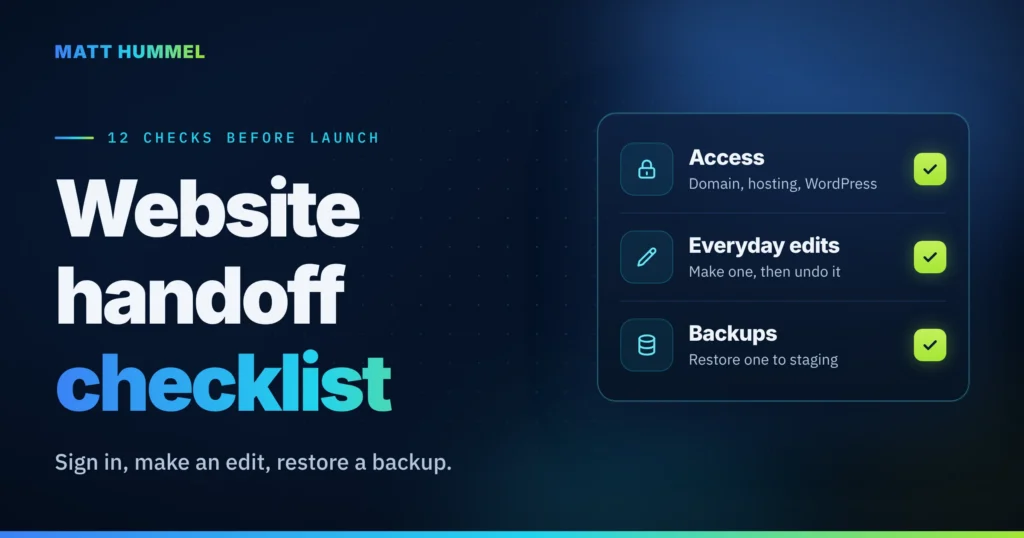
Before launch, make sure your business can sign in to the accounts that run the site, make a routine edit, and recover from a problem. Use this 12-point website handoff checklist on a call with your developer. For each item, write down who owns it, who can get in, and what you tested together.
At a glance
- Sign in yourself. Use business-controlled accounts for your domain, hosting, and WordPress.
- Make and undo one edit. Try updating your hours, menu, or a photo while your developer is there.
- Find the recovery plan. Check where backups live, when a restore was last tested, and who to call if the site goes down.
Run a 30-minute handoff call
Ask your developer to send this checklist before the call so you have time to find your logins. On the call, share your screen and do each test yourself. If you can’t verify something, write down who will fix it and by when.
| Time | What to do together |
|---|---|
| First 10 minutes | Prove access. Sign in to your domain, hosting, and WordPress dashboards. |
| Next 10 minutes | Make a real edit. Update a holiday hour, preview it on a phone, and undo the change. |
| Last 10 minutes | Walk through recovery. Find the latest backup, review the last restore test, and confirm who handles urgent issues. |
Website handoff checklist for accounts and access
1. Domain and DNS
Review. Open your registrar, the company where your domain name is registered. Then open the DNS dashboard. DNS is the set of records that points your domain at your website and email.
Verify. You can sign in, name the renewal date, and find the recovery contact.
2. Hosting and billing
Review. Open the hosting dashboard and find the billing owner, renewal date, and support contact.
Verify. You can open a support request when your developer isn’t available.
3. WordPress user access
Review. Get an administrator account in your own name. Give staff the WordPress roles they need for daily work.
Verify. A staff editor can update a page, and you know how to remove access when someone leaves.
Backups, migration, and reporting
4. Backups and recovery
Review. Write down what gets backed up, how long backups are kept, and where they live. A full WordPress backup covers both the site files and the database.
Verify. Your developer restores a recent backup to staging, a private copy of your site for testing. Key pages, images, and logins work there.
5. Moving to a new host
Review. Ask for the migration plan. It should cover the database, uploads, custom code, and licenses.
Verify. You know which content depends on the current theme or a plugin, and what you’d need to replace if you moved.
6. Analytics and Search Console
Review. Check who controls Google Analytics. Check Search Console ownership and permissions separately.
Verify. You can sign in to both tools, and your team knows which inquiries or bookings are tracked.
Renewals, staging, and everyday edits
7. Licenses and renewals
Review. List paid themes, plugins, fonts, and booking tools. Add the account owner and renewal date for each.
Verify. You know which subscriptions need to move to your name and what happens if each one expires.
8. Staging and safe updates
Review. Ask your developer to show you where updates get tested before customers see them.
Verify. Staging is locked to your team, and test forms can’t send real booking or customer emails.
9. Everyday content edits
Review. Have the person who will run the site edit a real menu item, photo, or business hour.
Verify. They can preview, save, and undo the change without breaking the page layout.
Here’s a common snag. A café owner changes a holiday closing time in WordPress, but their phone still shows the old time. If the edit shows in the dashboard and the public page stays stale, ask your developer to check caching before you repeat the edit.
Keep the test open until the owner can reload the public page on a phone and see the right hours. Write down who will fix it and who will rerun the test.
Launch testing and ongoing support
10. Accessibility and mobile checks
Review. Pick a key task, such as sending an inquiry. Try it on a phone, then with only a keyboard. The W3C Easy Checks give you a starting list.
Verify. You’ve written down where keyboard focus moves, whether form errors are clear, and anything that needs a follow-up.
11. Maintenance and support
Review. Write down who handles updates, failed backups, and urgent problems after launch.
Verify. You know who to contact, what support covers, and what happens outside support hours.
12. The handoff document
Review. Keep account locations, common editing steps, support contacts, and open issues in one shared document.
Verify. A teammate who missed the call can find what they need. Passwords and recovery codes stay in your business password manager.
Decide what needs fixing before launch
Flag any issue that could leave your team locked out, unable to recover the site, or unable to finish a key customer task. Put lower-impact items on a follow-up list with a named owner and a date.
| Fix before launch | Track after launch |
|---|---|
| The business can’t sign in to its registrar. | Add renewal reminders to the business calendar. |
| A booking form fails to send a test request. | Improve the booking confirmation wording. |
| Nobody has verified that the backup restores. | Add screenshots to the routine editing guide. |
Use one shared handoff record
Copy this table into your handoff document. For each row, record who owns the account, what you tested, and what still needs work.
| Check | Owner | Evidence | Follow-up |
|---|---|---|---|
| Domain | |||
| Hosting | |||
| WordPress accounts | |||
| Backups and restore test | |||
| Migration and export | |||
| Analytics and Search Console | |||
| Licenses and renewals | |||
| Staging | |||
| Routine edits | |||
| Accessibility and mobile checks | |||
| Maintenance and support | |||
| Handoff document |
Here’s what two filled-in rows might look like for a small business. Specific evidence tells the next person what was checked.
| Check | Owner | Evidence | Follow-up |
|---|---|---|---|
| Domain | Business owner | Signed in to the registrar and checked the recovery email. | Record the next renewal date. |
| Backups | Operations lead | Restored the latest backup to staging and checked that the site opened. | Record who will run the next restore test. |
What an easier handoff looks like
In my Cobble & Candle restaurant theme, the setup checklist shows which tasks are done and which still need attention. Each item has a “Fix this” link to the right settings screen. You shouldn’t need a developer to tell you where the business hours live every time they change.
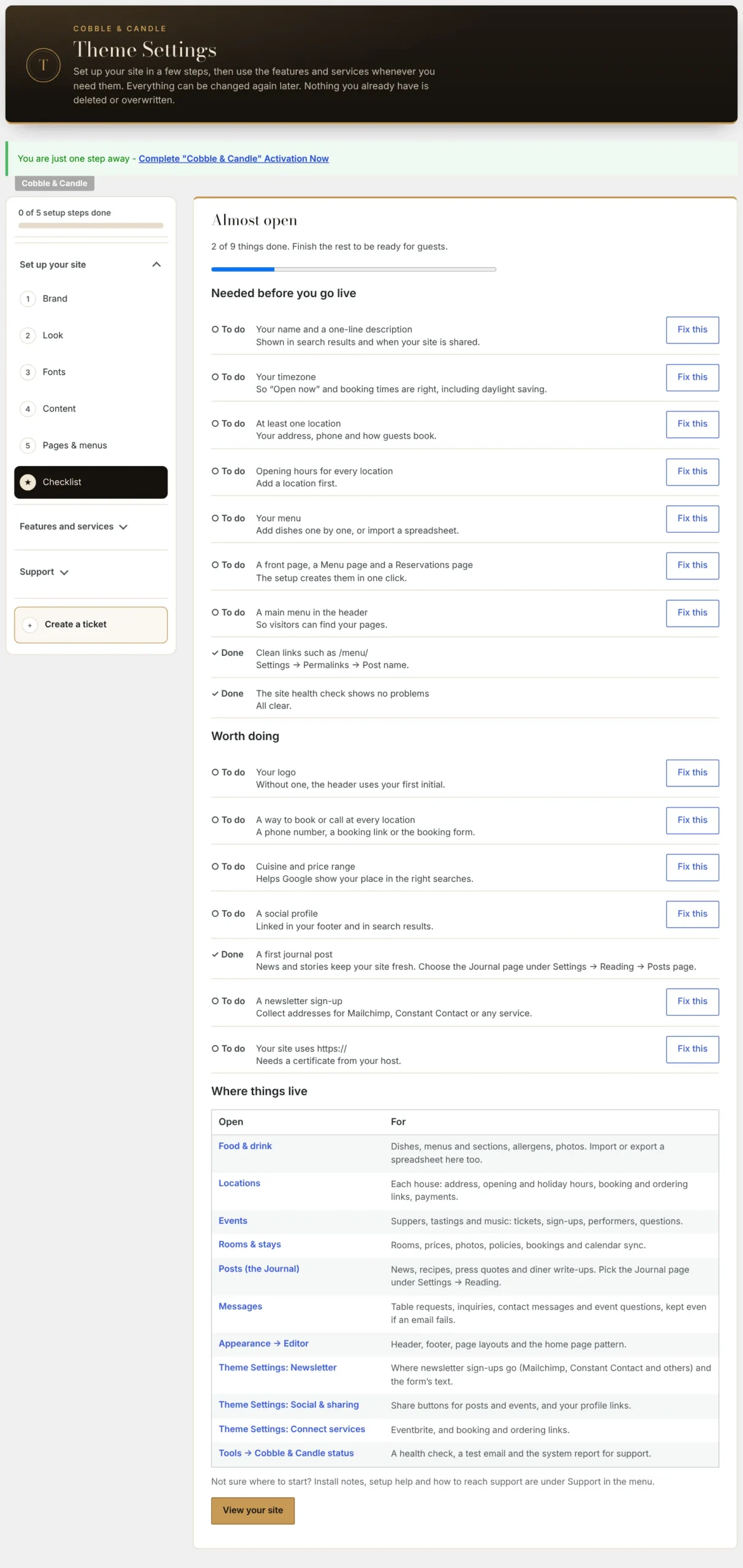
A Pages & menus step creates missing pages and menu links in one click. It never changes pages you already have. The Cobble & Candle setup guide walks owners through setup and points them to the screens they’ll need after launch.
That’s what I aim to hand over on every project: a WordPress site you can run after I finish. You get clear ownership, staged previews, and a handoff document you can edit.
Common questions
What should I test during a website handoff?
Sign in to the domain, hosting, and WordPress accounts with your own credentials. Make and undo a routine edit, then ask your developer to show you where the backups are and how a restore was tested.
Can my agency manage the site after launch?
Yes. Give the agency its own access and document who handles updates, backups, and urgent issues. Keep a business-controlled account and a recovery route.
Is a WordPress content export enough for a full handoff?
No. A content export covers selected site content. For a full recovery, confirm that the backup includes the database and site files, and test restoring it to staging.
Related reading
For a longer list built for WordPress sites, use my 24-item WordPress handoff checklist. Start with website ownership basics if you’re unsure how domains, hosting, and staging fit together. Use my WordPress speed checks to record a performance baseline. If an agency is sharing the work, see how I handle WordPress agency overflow and handoffs.
Put your website handoff checklist to work
Run the checklist on a call while your developer can still walk you through each step.


Comments
No comments yet. ASCII, code, and plain punctuation are welcome.