
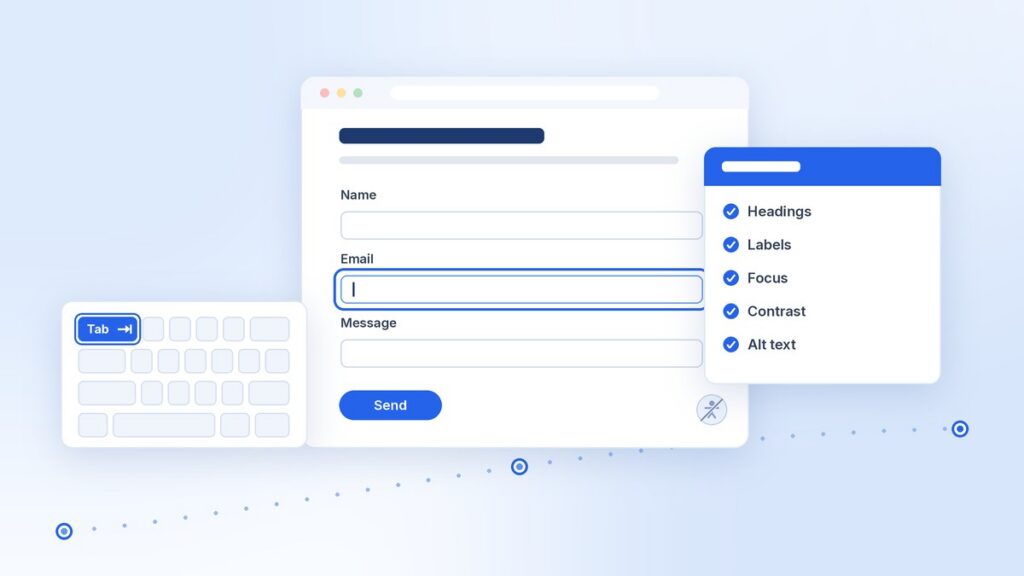
A WordPress accessibility plugin that adds a widget or overlay can’t fix the problems that live in your theme and your content. I have done in-house web work for about 17 years, starting as webmaster in the marketing office at a public community college, and accessibility has been part of that work the whole time. This post covers what an overlay WordPress accessibility plugin can and can’t do, where the real problems usually are, and a short check you can run yourself.
A quick note before I start: this is not legal advice. It’s what I’ve learned from doing the work. If you have legal questions about the ADA or another law, talk to a lawyer.
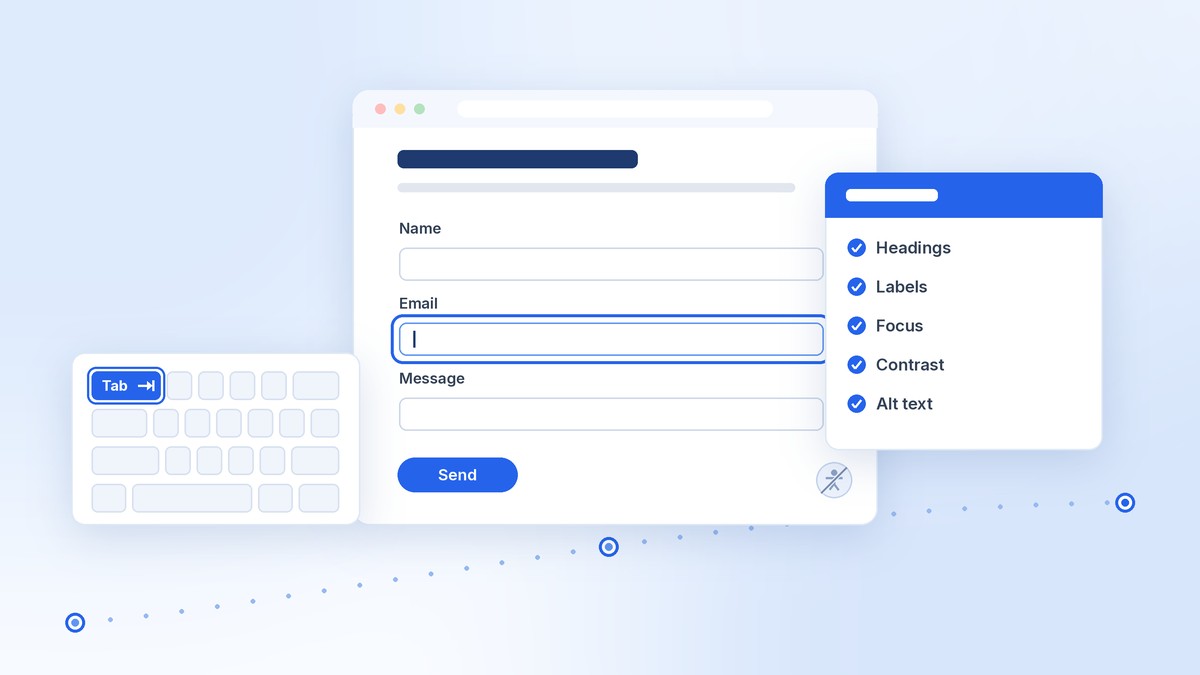
What an overlay WordPress accessibility plugin can and can’t do
A typical overlay or widget plugin adds a button to every page. It opens a toolbar where a visitor can make text bigger, raise contrast, change spacing, or pause animations. Some also run scripts after the page loads that try to add labels or alt text on the fly.
Those options can help some visitors. But a toolbar changes how the page looks. It does not change the HTML that your theme and your content produce, and that HTML is what a screen reader or a keyboard user depends on. Many people who rely on assistive technology already have their own settings and tools, too.
What the FTC said about accessiBe
In April 2025, the Federal Trade Commission approved a final order requiring accessiBe to pay $1 million. The FTC’s complaint said the company claimed its accessWidget tool could make any website compliant with the Web Content Accessibility Guidelines (WCAG), and that those claims were false, misleading, or unsubstantiated.
The order bars the company from claiming its automated products can make any website WCAG-compliant, or keep it compliant over time, unless it has evidence to back that up. I think that is a useful rule for anyone shopping for a WordPress accessibility plugin: be careful with any product that promises compliance from a single install.
What a WordPress accessibility plugin can’t reach
An overlay runs on top of the page. It can’t reliably:
- Fix heading levels that were chosen for looks instead of structure
- Write accurate alt text for your photos
- Add proper labels to a form that was built without them
- Change the tab order of a menu or modal that was built in the wrong order
- Know whether a link that says “Read more” makes sense out of context
Those decisions live in the theme, the blocks, and the content, not in a plugin. That is where the fixes need to go.
Problems a WordPress accessibility plugin can’t fix in your theme and content
When I review a WordPress site, the same issues come up again and again. None of them are solved by installing a plugin. Each one is a change to the theme or to the content.
Heading order
Headings give a page its outline. Screen reader users often jump from heading to heading to find what they need. Use one H1 for the page title, H2 for main sections, and H3 for sections inside those. Don’t skip a level to get a smaller font size. Change the style instead.
Form labels
Every field needs a visible label that is tied to the field in the code. Placeholder text is not a label. It disappears when someone starts typing, and it is often low contrast. Error messages should say what went wrong and should be announced to screen readers, not only shown in red.
Keyboard focus
Anyone using a keyboard needs to see where they are on the page. Many themes remove the browser’s focus outline with CSS because someone thought it looked messy. Put it back, or replace it with a clear focus style of your own. Menus, dropdowns, and modals also need to open, close, and move focus in a way that makes sense.
Color contrast
WCAG 2.1 Level AA asks for a contrast ratio of at least 4.5:1 for normal-size text. Light gray text on white and white text on a light brand color are the usual problems. These are design decisions, so the best place to fix them is the theme’s color palette and theme.json.
Alt text
Images that carry information need alt text that describes what matters about them. Decorative images should have empty alt text so screen readers skip them. Only the person who added the image knows why it is there, which is why alt text is a content task, not a job for a plugin.
Link text
Links should make sense on their own. Screen reader users can bring up a list of every link on a page, and ten links that all say “Click here” don’t help anyone. “Read the fall course schedule” is better than “Read more.”
A 30-minute keyboard and screen reader check
You don’t need special training to find the most common problems. Pick three pages: the home page, a typical post or page, and a page with a form. Give each one about ten minutes, split between the two checks below.
Keyboard check
- Click in the browser’s address bar, then press Tab. The first thing you reach should be a skip link or the main menu.
- Keep pressing Tab through the whole page. You should always be able to see where focus is.
- Press Shift+Tab to go back. Focus should move in an order that matches the layout of the page.
- Open the menu, any dropdowns, and any modals with Enter or Space. Close them with Escape. Make sure focus doesn’t get lost behind a closed menu.
- Fill out and submit the form using only the keyboard. Leave a required field empty and check that the error message is clear.
Screen reader check
Use the screen reader that comes with your computer, or a free one:
- On a Mac, turn on VoiceOver with Command+F5. Press Control+Option+U to open the rotor, which lists headings, links, and form controls.
- On Windows, install NVDA, which is free. Press H to jump between headings, and NVDA+F7 to open the elements list.
Then check these things:
- Does the headings list read like a sensible outline of the page?
- Do the links in the links list make sense without the text around them?
- When you reach a form field, does the screen reader say its label?
- Do images that matter get a useful description, and do decorative ones stay quiet?
Write down what you find. This check won’t catch everything, but it catches a lot. It will also show you what an overlay toolbar can’t change.
Checker and audit plugins versus overlays
Not every WordPress accessibility plugin is an overlay. It helps to sort the options into a few groups:
- Overlays and widgets. These add a toolbar or run scripts on the front end to change the page for visitors. They don’t fix the source.
- Content checkers. This kind of plugin runs in the editor or the admin and flags problems as you write, such as missing alt text, skipped heading levels, empty links, or low contrast. It helps editors fix issues at the source.
- Site scanners and audit tools. These crawl pages or run in the browser and report issues against WCAG. Many are built on open-source rule engines such as axe-core.
- Theme and block fixes. Sometimes the right fix isn’t a plugin at all. It’s a small change to the theme, like a skip link, restored focus styles, or a better color palette.
A checker-type WordPress accessibility plugin is useful because it points you to the source of a problem. But automated tools can only test part of WCAG. A tool can tell you an image has no alt text. It can’t tell you whether the alt text you wrote is accurate. You still need a person to check.
WordPress core is taking a similar approach with its own code. The Roadmap to 7.2 lists axe-core automated testing to prevent accessibility regressions. That testing is one part of the work, not all of it.
The ADA Title II dates changed, but the standard did not
If you build sites for state or local government, the Department of Justice extended the Title II web compliance dates in April 2026. Public entities serving 50,000 or more people now have until April 26, 2027. Smaller entities and special district governments have until April 26, 2028.
The technical standard is still WCAG 2.1 Level AA, and installing a plugin doesn’t change what that standard asks for. The DOJ fact sheet on the rule lists public schools, community colleges, and public universities among the covered entities. It also says the rule applies to web content a contractor builds or updates for a public entity. For agencies, that means the work you deliver is part of the client’s compliance.
Where accessibility work belongs in a WordPress build
My first webmaster job was in the marketing office at Germanna Community College, a public community college. A college site serves prospective students, current students, faculty, staff, and the community. Some of those people use screen readers, keyboards, or zoom. I learned early that accessibility can’t be a last step before launch. I wrote more about that time in how I learned this work.
Here is where I put accessibility work in a build now:
- Design. Choose a color palette that passes contrast, design visible focus styles, and plan heading levels for each template.
- Theme development. Use semantic HTML and landmarks, add a skip link, keep focus styles, and build menus and modals that work with a keyboard.
- Blocks and patterns. Set sensible heading levels in patterns, and require labels on any custom form or interactive block.
- Content. Show editors how to write alt text and link text and how to use headings in order. A one-page guide goes a long way.
- Testing. Run an automated checker, then do the keyboard and screen reader check above on each template before launch. The tools I use are listed in my AI workflow for WordPress development.
- After launch. Check new templates and plugin updates the same way. New content is where many problems come back.
Doing this during the build costs less than fixing it later. It also means the site works for more people from the first day, whether or not a WordPress accessibility plugin is installed.
I try to follow the same approach in my own plugin. TOCguide, my table of contents block, outputs a nav landmark with an ARIA label and has settings for focus ring styles. I wrote about building it in how I published my first WordPress.org plugin.
Next steps
- Run the 30-minute check on your three most important pages this week.
- Fix what you find in the theme and the content first.
- If you want help catching issues as you write, add a checker-type WordPress accessibility plugin, and treat its results as a starting point, not a pass.
- Keep the W3C WCAG overview handy as your reference.
- Watch WordPress Accessibility Day on October 7–8, 2026. It’s a free, 24-hour livestreamed event with talks for WordPress developers, designers, and content creators.
If you run an agency and need a developer who builds accessibility into custom themes and blocks from the start, I take on agency overflow work. I’m also open to a full-time role. You can see how I work on the Hire me page or reach me through the contact page.
— Matt
I write about accessible, modern WordPress development, AI tools, and building plugins. Follow me on DEV.to or GitHub, or subscribe with the RSS feed.

Comments
No comments yet. ASCII, code, and plain punctuation are welcome.